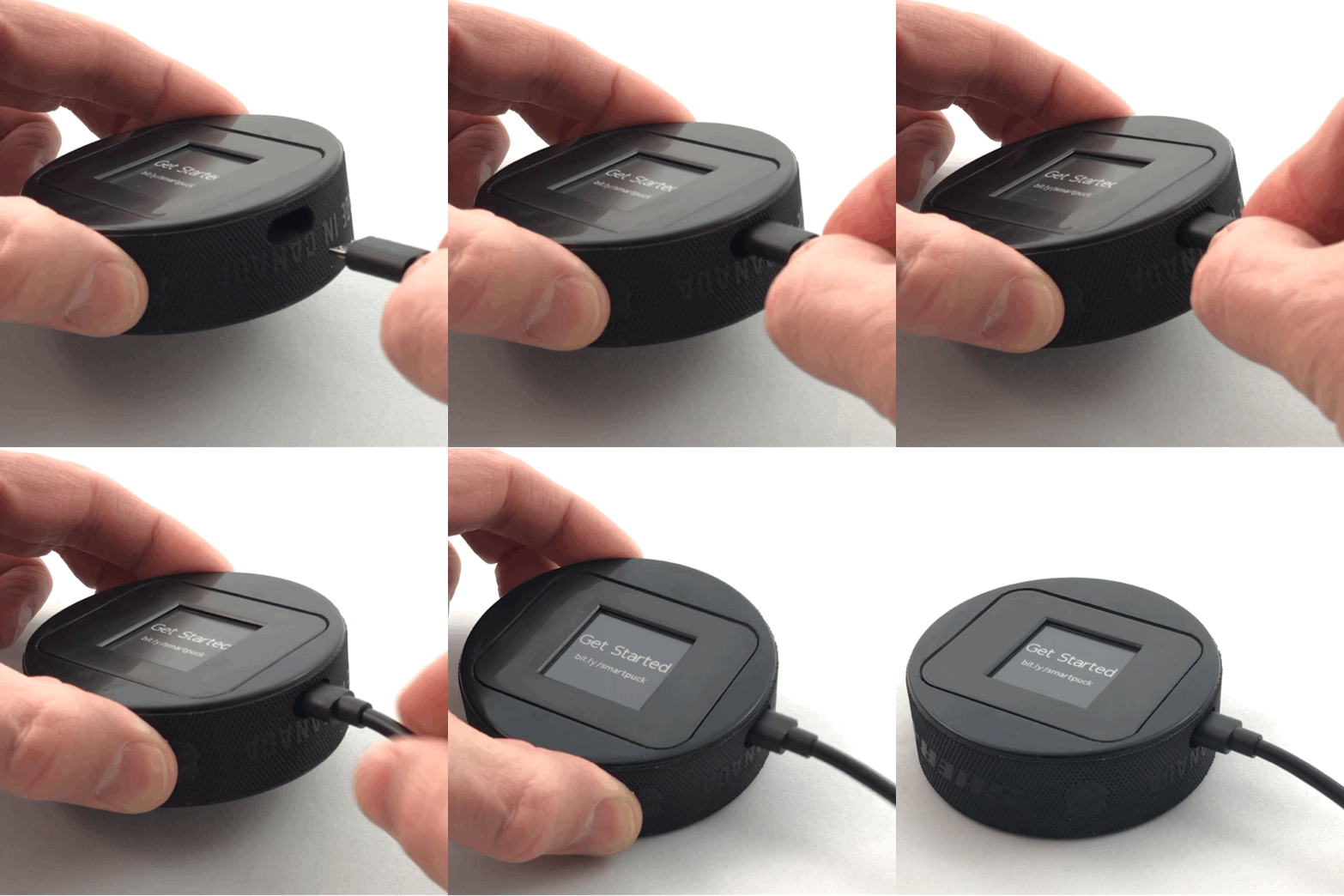
Connect the Puck
Connect the provided USB cable to your puck.
Thank you so much for purchasing a Smart Puck. Getting it set up should only take a few minutes so let's get started.
Connect the provided USB cable to your puck.
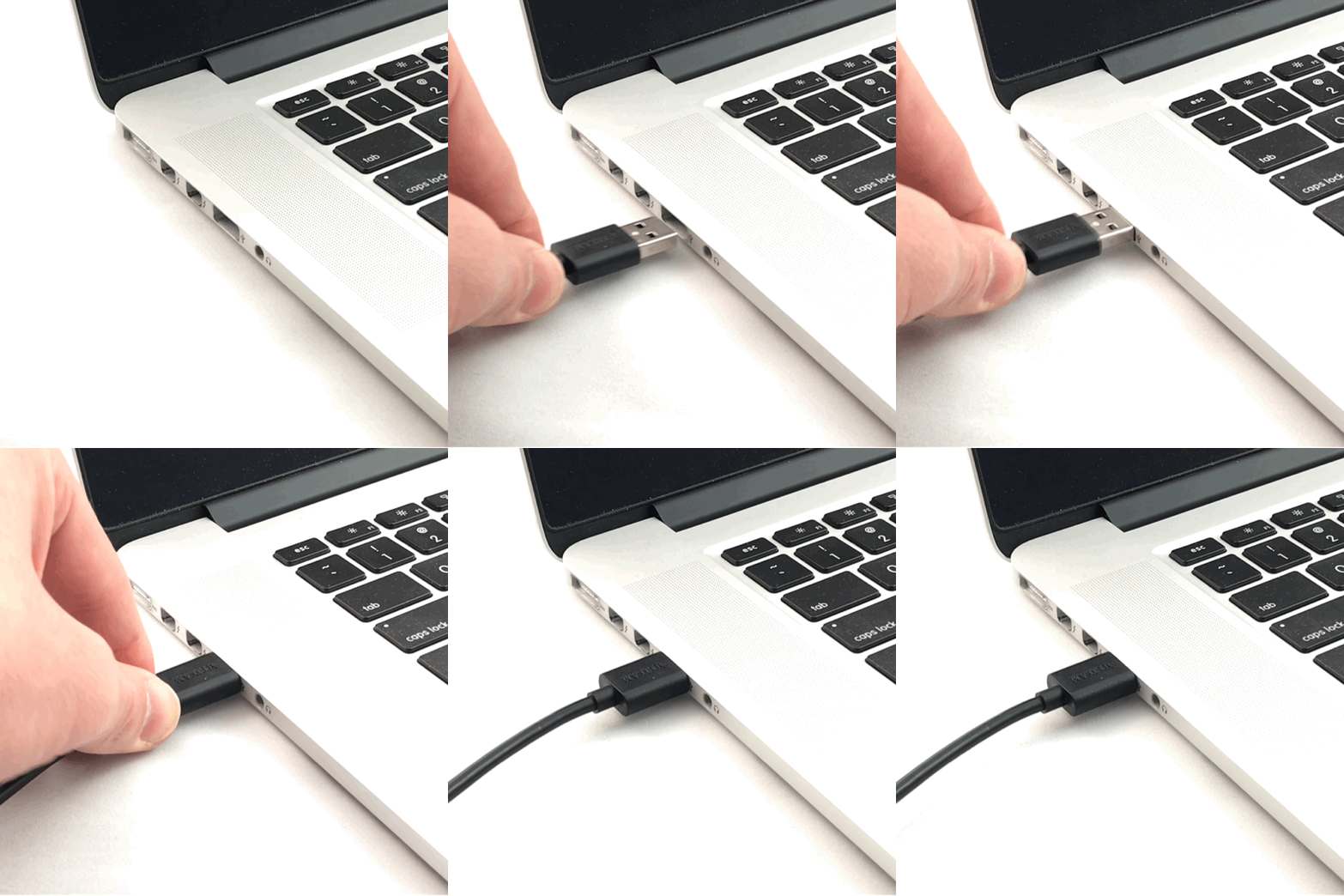
Connect the USB cable to a power source such as a cell phone charger or laptop.
Select the type of device you are using to configure your puck.


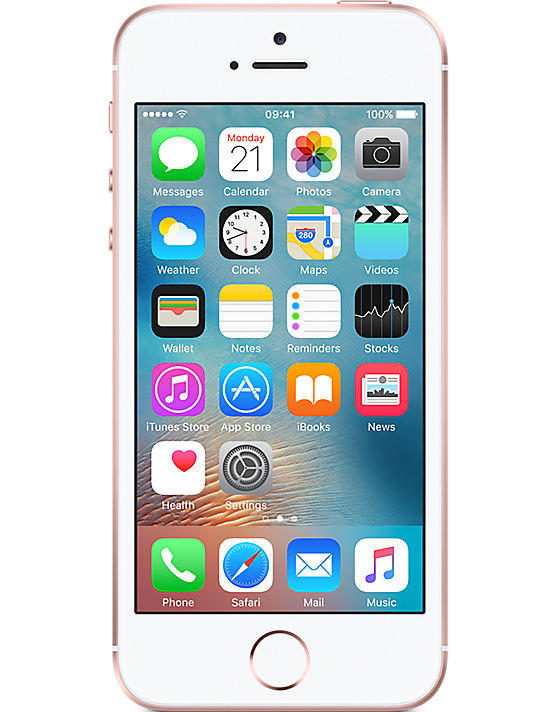
What kind of Apple device are you using?
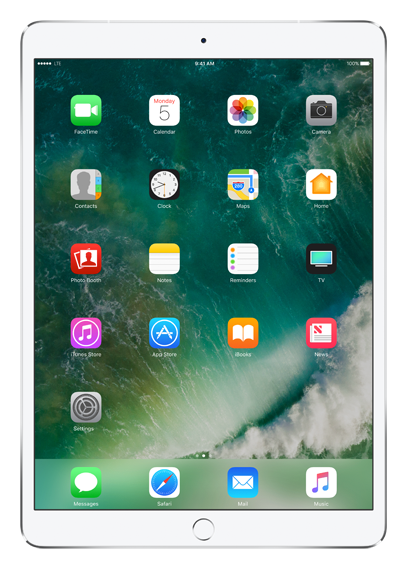
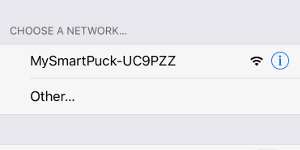
To start your puck we need to connect it to the internet through your home WiFi network. This only has to be done once. Follow the steps below to get connected.
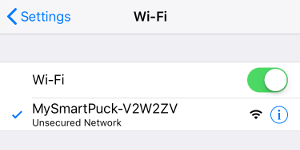
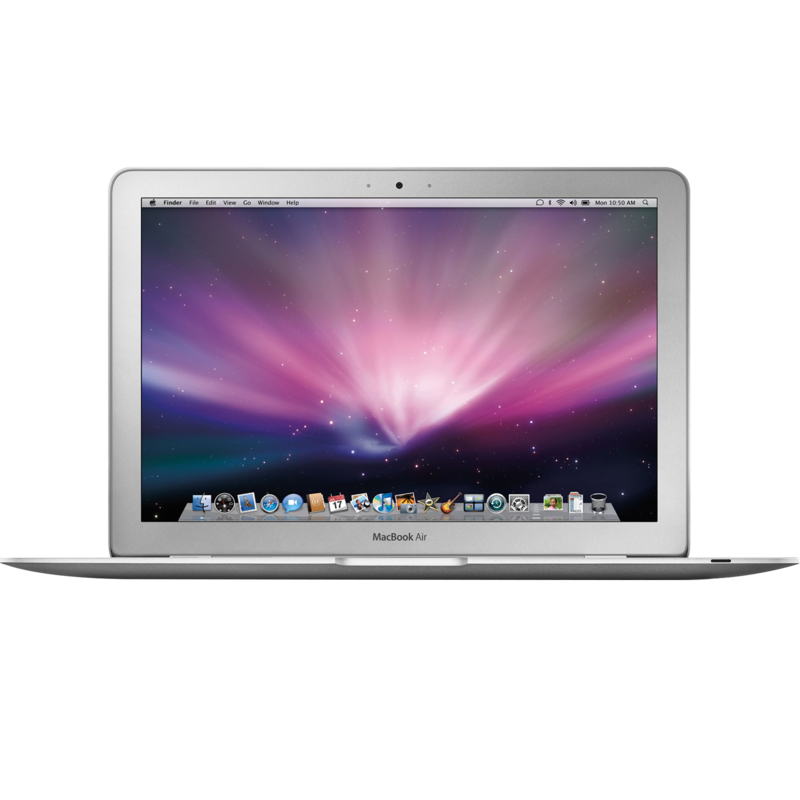
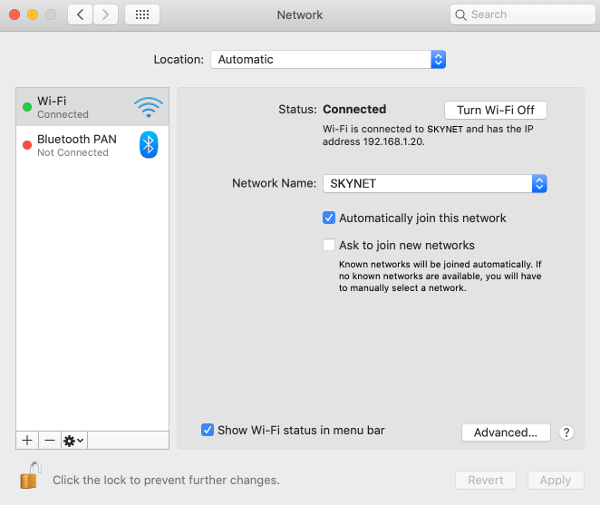
To start your puck we need to connect it to the internet through your home WiFi network. This only has to be done once. In OSX this can be done through System Preferences or via the menu bar. Instructions for both are provided below.
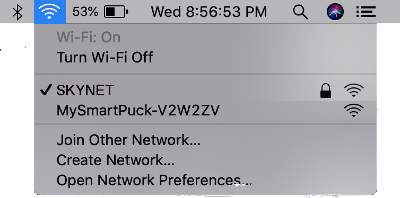
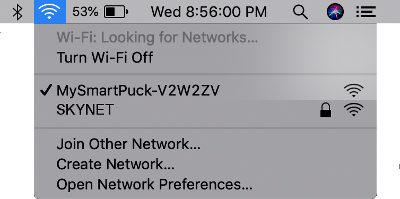
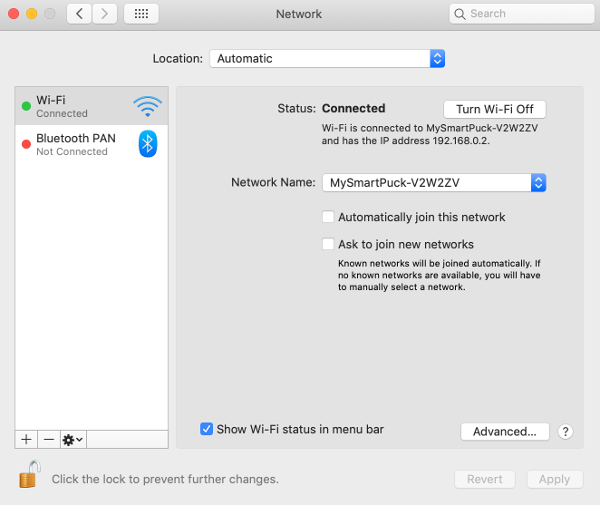
To start your puck we need to connect it to the internet through your home WiFi network. This only has to be done once. Follow the steps below to get connected.

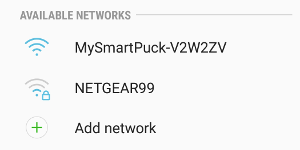
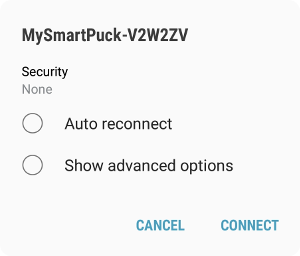
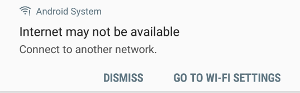
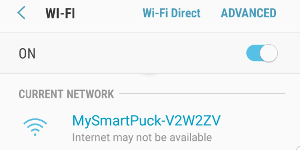
To start your puck we need to connect it to the internet through your home WiFi network. This only has to be done once. In Windows this can be done through the Settings app or via the menu bar. Instructions for both are provided below.
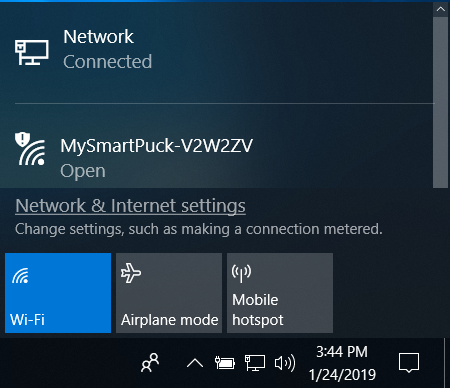
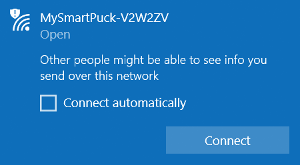
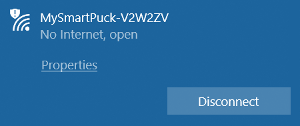

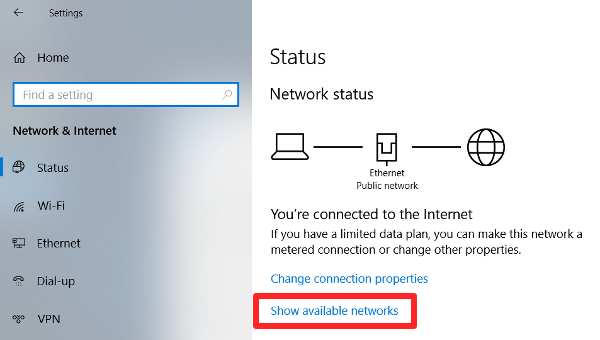
To start your puck we need to connect it to the internet through your home WiFi network. This only has to be done once. Here are some generic instructions on how to do that.
I'm trying to connect to your puck. Please wait...
Below is a list of nearby networks the puck found. Select your network from the list, enter your password, and click Connect. Your password will be encrypted and sent directly to the puck (not over the intenet) so it can connect to your WiFi network.
The color next to each network indicates how strong the signal is. Green is excellent, yellow is ok, and red means the signal is likely too poor for the puck to work. To get a better signal move your puck closer to your WiFi source and scan again.
I'm having trouble finding your puck. Make sure the phone, tablet or computer you are using is connected to the MySmartPuck WiFi network and try again.
We sent your password directly to the puck and now it's trying to connect to your WiFi and get stats. If successful it will display those stats within 20 seconds.
Your puck will display the latest stats after each game. All you have to do is keep it within WiFi range and it will take care of the rest.
We want to sincerely thank you again for purchasing a StatFeedr product. If you have any trouble with it please reach out to support@statfeedr.com.
If your puck doesn't update the most common issue is an incorrect WiFi password. Don't worry, it happens. We can just go through the setup process again. You might want to use the "Show password" checkbox the next time you enter it just to be sure you're typing it correctly and also verify that your caps lock isn't on.